E-Klaim Troubleshooting: Grouping Failed / Empty Result
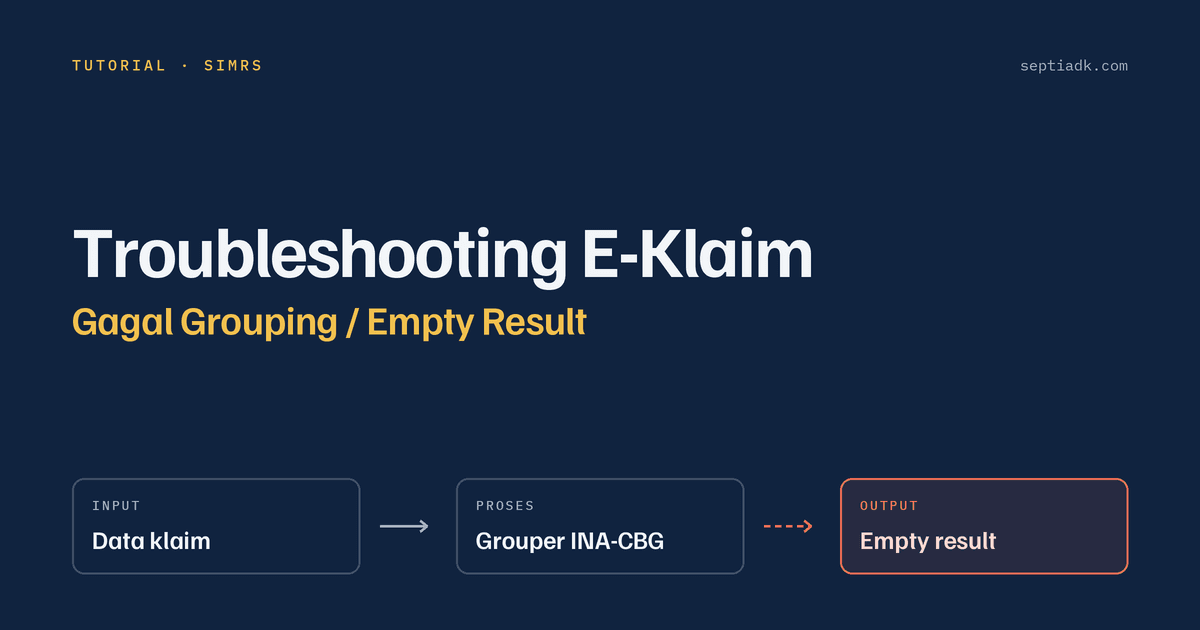
When using the E-Klaim application, the claim grouping process may sometimes fail and display the following error message:
FAILED: EMPTY RESULT
One troubleshooting approach is to re-apply the E-Klaim patch and make sure that the Apache and MySQL services in XAMPP are running with administrator privileges.
The following steps can be used to troubleshoot the issue.
1. Stop E-Klaim Services
Before applying the patch, stop the services used by the E-Klaim application.
-
Close the E-Klaim application.
-
Open XAMPP Control Panel.
-
Click Stop for:
- Apache
- MySQL
-
After both services have stopped, click Quit to close XAMPP Control Panel.
Make sure that Apache and MySQL are no longer running before proceeding to the next step.
2. Temporarily Disable Security Software
In some situations, the patching process may be interrupted or blocked by Windows security features or antivirus software.
For troubleshooting purposes, temporarily disable:
- Installed antivirus software.
- Windows Defender Real-time Protection.
- Windows Firewall.
Note: Security protection should only be disabled temporarily during troubleshooting and should be enabled again once the patching process has been completed.
3. Run the E-Klaim Patch as Administrator
After stopping the E-Klaim services, re-apply the application patch.
- Locate the E-Klaim v5.10.8 patch installer.
- Right-click the installer.
- Select Run as administrator.
- Follow the installation process.
Running the installer as administrator ensures that it has sufficient permissions to modify the required application files and folders.
4. Wait for the Patching Process to Complete
Allow the patching process to finish completely.
Do not close the installer or shut down the computer while the patch is being applied.
Once the patch has finished successfully, proceed to the next step.
5. Run XAMPP as Administrator
After the patch has been applied, start XAMPP again with administrator privileges.
-
Locate the XAMPP Control Panel shortcut.
-
Right-click the shortcut.
-
Select Run as administrator.
-
In XAMPP Control Panel, click Start for:
- Apache
- MySQL
Make sure that both services start successfully.
6. Try the Grouping Process Again
After Apache and MySQL are running:
- Open the E-Klaim application.
- Enter the claim data.
- Save the claim.
- Run the Grouping process.
- Check whether the following error still appears:
FAILED: EMPTY RESULT
If the grouping process succeeds, the issue may have been related to the patching process, application permissions, or the required services not running correctly.
7. Add the E-Klaim Folder to Antivirus Exclusions
To prevent E-Klaim application files from being detected or blocked by antivirus software, the application folder can be added to the antivirus Exclusion list.
The commonly used folder is:
C:\E-Klaim
On Windows Security, add the folder to the antivirus exclusion list.
Note: Adding an application folder to the antivirus exclusion list should follow the security policies of the organization or hospital. If the computer is managed by an IT department, consult the IT team before making this change.
Troubleshooting Checklist
Use the following checklist to make the troubleshooting process easier:
- E-Klaim application has been closed.
- Apache has been stopped.
- MySQL has been stopped.
- XAMPP has been closed.
- Antivirus has been temporarily disabled.
- Windows Defender Real-time Protection has been temporarily disabled.
- Windows Firewall has been temporarily disabled.
- E-Klaim v5.10.8 patch has been run as Administrator.
- Patch installation has completed successfully.
- XAMPP has been started as Administrator.
- Apache has started successfully.
- MySQL has started successfully.
- E-Klaim has been opened again.
- The grouping process has been tested again.
-
C:\E-Klaimhas been considered for addition to the antivirus exclusion list.
Summary
If E-Klaim displays FAILED: EMPTY RESULT during the grouping process, one troubleshooting approach is to re-apply the application patch with administrator privileges.
The overall process can be summarized as follows:
Close E-Klaim
    ↓
Stop Apache & MySQL
    ↓
Close XAMPP
    ↓
Temporarily disable security protection
    ↓
Run the E-Klaim patch as Administrator
    ↓
Run XAMPP as Administrator
    ↓
Start Apache & MySQL
    ↓
Open E-Klaim
    ↓
Try the Grouping process again
If the issue persists after completing all of the steps above, further investigation may be required, including checking the MySQL database, Apache service, E-Klaim configuration, application logs, and the claim data associated with the failed grouping process.